


Bongo: Animation for Designers
Forward Kinematics – Moving, Rotation and Scaling
Animate objects directly in Rhino with simple drag-and-drop controls for moving, rotating and scaling—no exporting or tool switching required.
Bongo Feature Highlights
Animate Object Scale
Animate object scaling using the BongoScale command.
To animate object scaling:
- Click Animate in the Timeline.
- Select the object.
- Move the Timeline slider to the desired keyframe position.
- Scale the object using BongoScale or the Timeline scale boxes.
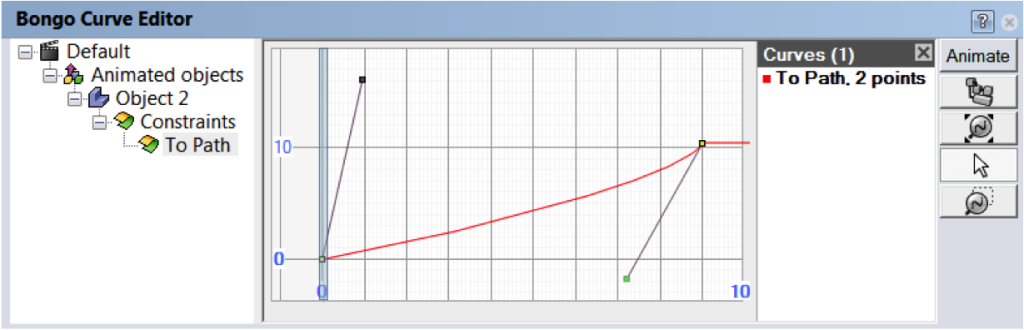
Curve Editor
The Curve Editor lets you visually control animation timing and speed by editing motion curves. It shows how tweening behaves in real time, allowing you to instantly see the impact of changes to tension, bias and continuity.
Animate Object Motion
Animate object movement directly in Rhino using the Move command or simple drag actions.
To animate object motion:
- Click Animate in the Timeline.
- Select the object.
- Move the Timeline slider to the desired keyframe position.
- Drag the object or use Rhino’s Move command to set its position.
Animate Object Rotation
Animate object rotation using the BongoRotate command.
To animate object rotation:
- Click Animate in the Timeline.
- Select the object.
- Move the Timeline slider to the desired keyframe position.
- Rotate the object using BongoRotate or the Timeline control boxes.
Get started with FORIDA
Bongo 2.0 - Commercial
$3,850.00 HKD
Commercial Bundles
$13,183.37 HKD
Modeling, Rendering, and Animation Bundle
(Including Rhino7.0, Flamingo nXt 5, Penguin 2.0, Bongo 2.0)
Bongo 2.0 - Educational
$1,516.67 HKD
Educational Bundles
$3,850.00 HKD
Modeling, Rendering, and Animation Bundle
(Including Rhino7.0, Flamingo nXt 5, Penguin 2.0, Bongo 2.0)